Wednesday, December 17, 2025

Nextcloud mapped share name change

Under

HKEY_LOCAL_MACHINE\SOFTWARE\Microsoft\Windows\CurrentVersion\Explorer\SyncRootManager\Nextcloud!{SystemUser}!{nextclouduser@nextcloudHost}!1

edit the DisplayNameResource to your liking.

 [ trackback ] 

Thursday, May 22, 2025

Set default vmrc:// handler from VMWare Workstation to VMRC

Going around and around every time, after patching VMware Workstation....

Powershell.

Set-Item HKLM:\SOFTWARE\Classes\vmrc\DefaultIcon -Value '"C:\Program Files (x86)\VMware\VMware Remote Console\vmrc.exe",0'

Set-Item HKLM:\SOFTWARE\Classes\vmrc\shell\open\command -Value '"C:\Program Files (x86)\VMware\VMware Remote Console\vmrc.exe" "%1"'


Tuesday, May 7, 2024

 Re-add "New Text Document" to Windows 11 Explorer "New" context menu.

Windows Registry Editor Version 5.00
; Text Document
[-HKEY_CLASSES_ROOT\.txt\ShellNew]
[HKEY_CLASSES_ROOT\.txt\ShellNew]
"ItemName"=hex(2):40,00,25,00,53,00,79,00,73,00,74,00,65,00,6d,00,52,00,6f,00,\
  6f,00,74,00,25,00,5c,00,73,00,79,00,73,00,74,00,65,00,6d,00,33,00,32,00,5c,\
  00,6e,00,6f,00,74,00,65,00,70,00,61,00,64,00,2e,00,65,00,78,00,65,00,2c,00,\
  2d,00,34,00,37,00,30,00,00,00
"NullFile"=""

[-HKEY_CLASSES_ROOT\.txt]
[HKEY_CLASSES_ROOT\.txt]
@="txtfile"
"Content Type"="text/plain"
"PerceivedType"="text"
[HKEY_CLASSES_ROOT\.txt\PersistentHandler]
@="{5e941d80-bf96-11cd-b579-08002b30bfeb}"
[HKEY_CLASSES_ROOT\.txt\ShellNew]
"ItemName"=hex(2):40,00,25,00,53,00,79,00,73,00,74,00,65,00,6d,00,52,00,6f,00,\
  6f,00,74,00,25,00,5c,00,73,00,79,00,73,00,74,00,65,00,6d,00,33,00,32,00,5c,\
  00,6e,00,6f,00,74,00,65,00,70,00,61,00,64,00,2e,00,65,00,78,00,65,00,2c,00,\
  2d,00,34,00,37,00,30,00,00,00
"NullFile"=""
[-HKEY_CLASSES_ROOT\SystemFileAssociations\.txt]
[HKEY_CLASSES_ROOT\SystemFileAssociations\.txt]
"PerceivedType"="document"
[-HKEY_CLASSES_ROOT\txtfile]
[HKEY_CLASSES_ROOT\txtfile]
@="Text Document"
"EditFlags"=dword:00210000
"FriendlyTypeName"=hex(2):40,00,25,00,53,00,79,00,73,00,74,00,65,00,6d,00,52,\
  00,6f,00,6f,00,74,00,25,00,5c,00,73,00,79,00,73,00,74,00,65,00,6d,00,33,00,\
  32,00,5c,00,6e,00,6f,00,74,00,65,00,70,00,61,00,64,00,2e,00,65,00,78,00,65,\
  00,2c,00,2d,00,34,00,36,00,39,00,00,00
[HKEY_CLASSES_ROOT\txtfile\DefaultIcon]
@=hex(2):25,00,53,00,79,00,73,00,74,00,65,00,6d,00,52,00,6f,00,6f,00,74,00,25,\
  00,5c,00,73,00,79,00,73,00,74,00,65,00,6d,00,33,00,32,00,5c,00,69,00,6d,00,\
  61,00,67,00,65,00,72,00,65,00,73,00,2e,00,64,00,6c,00,6c,00,2c,00,2d,00,31,\
  00,30,00,32,00,00,00
[HKEY_CLASSES_ROOT\txtfile\shell\open\command]
@=hex(2):25,00,53,00,79,00,73,00,74,00,65,00,6d,00,52,00,6f,00,6f,00,74,00,25,\
  00,5c,00,73,00,79,00,73,00,74,00,65,00,6d,00,33,00,32,00,5c,00,4e,00,4f,00,\
  54,00,45,00,50,00,41,00,44,00,2e,00,45,00,58,00,45,00,20,00,25,00,31,00,00,\
  00
[HKEY_CLASSES_ROOT\txtfile\shell\print\command]
@=hex(2):25,00,53,00,79,00,73,00,74,00,65,00,6d,00,52,00,6f,00,6f,00,74,00,25,\
  00,5c,00,73,00,79,00,73,00,74,00,65,00,6d,00,33,00,32,00,5c,00,4e,00,4f,00,\
  54,00,45,00,50,00,41,00,44,00,2e,00,45,00,58,00,45,00,20,00,2f,00,70,00,20,\
  00,25,00,31,00,00,00
[HKEY_CLASSES_ROOT\txtfile\shell\printto\command]
@=hex(2):25,00,53,00,79,00,73,00,74,00,65,00,6d,00,52,00,6f,00,6f,00,74,00,25,\
  00,5c,00,73,00,79,00,73,00,74,00,65,00,6d,00,33,00,32,00,5c,00,6e,00,6f,00,\
  74,00,65,00,70,00,61,00,64,00,2e,00,65,00,78,00,65,00,20,00,2f,00,70,00,74,\
  00,20,00,22,00,25,00,31,00,22,00,20,00,22,00,25,00,32,00,22,00,20,00,22,00,\
  25,00,33,00,22,00,20,00,22,00,25,00,34,00,22,00,00,00
[-HKEY_CURRENT_USER\SOFTWARE\Microsoft\Windows\CurrentVersion\Explorer\FileExts\.txt]
[HKEY_CURRENT_USER\SOFTWARE\Microsoft\Windows\CurrentVersion\Explorer\FileExts\.txt\OpenWithList]
[HKEY_CURRENT_USER\SOFTWARE\Microsoft\Windows\CurrentVersion\Explorer\FileExts\.txt\OpenWithProgids]
"txtfile"=hex(0):
[HKEY_CURRENT_USER\SOFTWARE\Microsoft\Windows\CurrentVersion\Explorer\FileExts\.txt\UserChoice]
"Hash"="hyXk/CpboWw="
"ProgId"="txtfile"
[-HKEY_CURRENT_USER\SOFTWARE\Microsoft\Windows\Roaming\OpenWith\FileExts\.txt]
[HKEY_CURRENT_USER\SOFTWARE\Microsoft\Windows\Roaming\OpenWith\FileExts\.txt\UserChoice]
"Hash"="FvJcqeZpmOE="
"ProgId"="txtfile"

Monday, January 8, 2024

Remove Gallery from Windows Explorer on Windows 11

In the following registry key

HKEY_LOCAL_MACHINE\SOFTWARE\Microsoft\Windows\CurrentVersion\Explorer\Desktop\NameSpace_41040327

Delete the following key

{e88865ea-0e1c-4e20-9aa6-edcd0212c87c}

[ trackback ]

Thursday, September 28, 2023

Powerpoint default slide deck, NOT default theme.

There's a lot of confusing answers regarding how to set the default template to use when opening Powerpoint.

A lot of people ask how to set the default template, answers usually are how to set the default theme.

Not the same thing.

Apparently, the only way I've found to actually change the default slide deck used when opening Powerpoint is to replace the file of the default template (apparently hardcoded location).

Location: %appdata%\Microsoft\Templates

Filename: default.potx or blank.potx

[ trackback ]


Thursday, September 21, 2023

Automatic client certificate choosing in browsers

 Long time, no see!!

If you have some corporate websites that require you to present a client certificate to access them, browsers are set to make you select the certificate EVERY TIME YOU ACCESS THE SITE, even if you only have one personal certificate.

To change this you can use:

MS Edge @ Windows (should be similar for Chrome, did not test)

Add a reg key at
Computer\HKEY_CURRENT_USER\Software\Policies\Microsoft\Edge\AutoSelectCertificateForUrls
Then add one entry per domain to match

There are GPOs to make this more Corporate IT friendly.

Chrome @ Mac

Execute the following on a terminal

defaults write com.google.Chrome AutoSelectCertificateForUrls -array
defaults write com.google.Chrome AutoSelectCertificateForUrls -array-add -string '
[
  { "pattern": "[*.]domain.tld", "filter": { "ISSUER": { "CN": "<issuer name>" } } }
]
'

Add one "pattern" line in the json array per domain to match.

Firefox (OS independent, AFAIK)

in "about:config"
define 'security.default_personal_cert' as "Select Automatically".


Sunday, September 23, 2018

Alt-TAB behavior in Ubuntu's Gnome Shell

Default behavior group TAB of the same app is a pain for me. Changing this to show all individual windows is as follows.

  • Open dconf-editor
  • Go to org/gnome/desktop/wm/keybindings
  • Move the value 'Tab' from switch-applications to switch-windows
  • Optionally move 'Tab' from switch-applications-backward to switch-windows-backward
  • If you want switch-windows to work across desktops, not just in the current desktop, you can also uncheck org/gnome/shell/window-switcher/current-workspace-only
  • Close dconf-editor
  • Press F2, then type r to restart Gnome.

The last step does not always appear to be necessary, but it should not hurt (especially since it does not close any of your running applications).

[ trackback ]

Wednesday, May 9, 2018

Keepass and Cygwin's ssh

Since having Cygwin installed anf fully operational, I've let go of PuTTY a long time back.

But Keepass keeps the default ssh:// handler dependent on PuTTY.
Here is how to change it, and use Cygwin's plain old 'ssh' com MinTTY terminal.

On Keepass, Tools > Options > Integration, click 'URL Overrides' on the bottom right.


Untick the default ssh handler.

Next, create a new entry, with:

Scheme: ssh
URL override:
cmd://C:\cygwin\bin\mintty.exe -i /Cygwin-Terminal.ico -h error -e /usr/bin/bash -l -- ssh -l {USERNAME} -p {BASE:PORT} {BASE:HOST}
(adjust paths accordingly)

This has one caveat, where you need to always define the port number on the URL field, and not leave it blank...

example: ssh://host.name:22

One option is to create a wrapper for ssh, so it can handle URL formatted arguments (protocol://username@hostname:port), split it accordingly, and handle all the possible omissions.... but that's for another post....

Thursday, July 13, 2017

FreeDNS dynamic DNS update client (revisited)

Back in 2011 I posted a tweaked script from afraid.org (of FreeDNS) - named dnsactual.sh - to update your IP addresses dynamically in this DNS service provider.

Today I reviewed it, and I further tweaked it, removing dependencies for external web sites.
Before, a GET to http://ipecho.net/plain (or other similar site) was required to get you your public IP address.
But if the site is unavailable, you could get in trouble and end up shooting yourself on the foot, messing up your dynamic DNS entries.

Thanks to OpenDNS (or the omnipresent Google), there is a way to get your IP address with a simple 'dig' query :-)

dig +short myip.opendns.com @resolver1.opendns.com
dig TXT +short o-o.myaddr.l.google.com @ns1.google.com [ trackback ]

Now the updated script. Feel free to used, edit, magle, whatever!
This logs any updates to syslog, and appends to file, for historic reasons.
I know it could have a lot more health checks for error handling, but for me it's enough.

#!/bin/bash

FQDN="## your own FQDN on FreeDNS ##"
TOKENS="## get your own##"
PATH=/bin:/sbin:/usr/bin:/usr/sbin
LOGGER="logger -t FREEDNS"

CacheIP=$(dig +short $FQDN @ns1.afraid.org)
CurreIP=$(dig +short myip.opendns.com @resolver1.opendns.com)

if [ "$CurreIP" != "$CacheIP" ]
then
  for A in $TOKENS ; do
    $LOGGER `curl -k -s "https://freedns.afraid.org/dynamic/update.php?$A"`
  done
  echo "`date +%Y%m%d-%H%M`: New IP address $CurreIP (old was $CacheIP)" >> /var/log/freedns.log
else
  $LOGGER "Public IP hasn't changed..."
  # the 'else' section is just to validate if the script is actually running, not really needed once tested
fi

Tuesday, March 8, 2016

External NTP sync for Domain Controllers (refresh)

Waaaay back in 2012, I etched a note on how to sync Domain Controllers to an External NTP source.

Now, back to the future (not so near... 2013), it got *A LOT* simpler...

w32tm.exe /config /manualpeerlist:"0.#country_code#.pool.ntp.org 1.#country_code#.pool.ntp.org" /syncfromflags:manual /reliable:YES /update

And that's all, folks!

[ trackback ]

Friday, April 17, 2015

Auto Save Keepass database

Keepass is one of THE best tools ever for any IT personna.

But if, as I usually do, you don't save it regularly, when your laptop runs out of battery, all your changes will be lost - I have my laptop on hibernate when not using it (SSD rules!!).

And then there's this lifesaver. This is not my doing, but it's a great KP keepsake :-) No plugin, just builtin KP triggers.

1. In KeePass Password Safe, click on Tools menu and select Triggers.

2. Click on Add button to open Add Trigger wizard.

3. Enter a name for the new trigger, such as Auto Save Database, then click Next. Left the “Enabled” and “Initially On” check boxes ticked, and “Turn off after executing actions (run once) check box unticked.


4. On the “Events” tab, click on Add button.

5. Select User interface state updated in the “Event” drop-down list, which evaluates to true when KeePass has finished updating the state of the user interface (menus, toolbar, …), including after most user actions, like adding / editing / deleting entries and groups, etc. Then, click OK, follow by Next in the wizard.


6. Optional: On the “Conditions” tab, click on Add button.

7. Optional (if perform step above):Select Active database has unsaved changes in the “Condition” drop-down list, and click OK, follow by Next in the wizard.


8. On the “Actions” tab, click on Add button.

9. Select Save active database in the “Action” drop-down list, and click OK.


10. Click Finish, follow by OK.

    Thursday, October 30, 2014

    mRemoteNG takes up to 30sec to start when cut from Internet

    mRemote is your one-stop-shop for all your remote connection needs (telnet/ssh/rdp/ica).

    But when connected on a network with no internet connection, it takes a while to load... 20~30 sec.

    "mRemoteNG and many of its associated files are digitally signed with a certificate from Comodo. Microsoft calls this technology Authenticode. When the .NET Framework starts mRemoteNG, it verifies the certificate revocation list (CRL) from Comodo to verify that the certificate is still valid.

    This is a security feature and is used to verify that mRemoteNG has not been tampered with."


    "The checking is all handled by the .NET Framework before mRemoteNG even loads."
    by rmcardle, coder of mRemoteNG.

    But this can be disabled, if needed.

    Add
    <runtime><generatePublisherEvidence enabled="false"/></runtime>
    to the end of mRemoteNG.exe.config file, inside the <configuration> tag, located in the directory where mRemoteNG.exe is installed/located. 

    [ trackback ]

    Tuesday, August 5, 2014

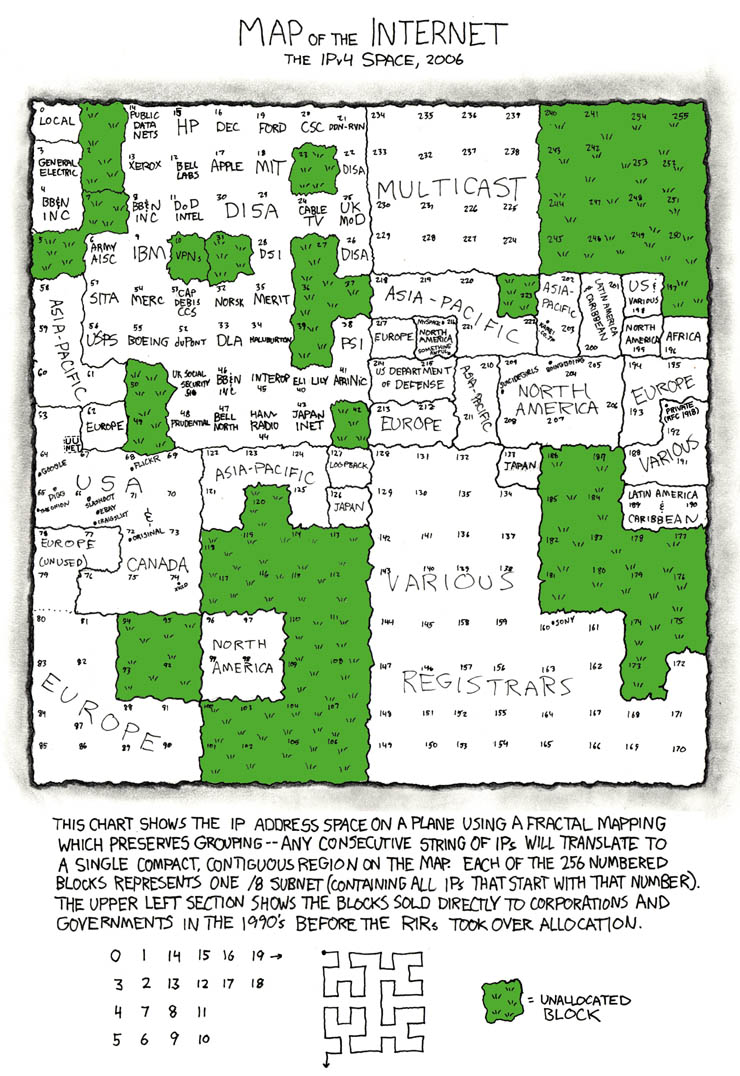
    Internet IP addressing map

    This one is an oldie revisited :-)

    Waaaay back then (2006), xkcd made an Internet IP address map.


    Someone made an update (@2011)... the change is... abyssal!


    Tuesday, November 12, 2013

    Auto reboot on VirtualBox

    If you ever get a linux on continuous reboot for some kind of 'virtual hardware' issue, it could be a real nag!!

    # VBoxManage setextradata <VMNAME> "VBoxInternal/PDM/HaltOnReset" 1

    This will do the trick!!

    [ trackback ]

    Tuesday, October 29, 2013

    Re-attach NFS share on ESX after connection loss

    ESXi 5.x

    To remove a datastore:
    1. To list the mounted datastores on the host:
     
    # esxcli storage nfs list
    2. Make a note of the NFS datastore from step 1. Run this command to delete the NFS mount:
     
    # esxcli storage nfs remove -v NFS_Datastore_Name

    Note: This operation does not delete the information on the share, it unmounts the share from the host. If the NFS datastore is being used by either a virtual machine or a third party script, you may see this error:

    Error performing operation: NFS Error: Unable to Unmount filesystem: Busy.

    3. To add the datastore, run this command to mount the NFS datastore: 

    # esxcli storage nfs add -H NFS_IP|NFS_HOSTNAME -s Share_mount_point_on_the_NFS -v DatastoreName

    On a working cluster, you only need to do this on one node, the others will pickup.
     

    [ trackback ]

    Monday, July 22, 2013

    BASH redirection


       1>filename
          # Redirect stdout to file "filename."
       1>>filename
          # Redirect and append stdout to file "filename."
       2>filename
          # Redirect stderr to file "filename."
       2>>filename
          # Redirect and append stderr to file "filename."
       &>filename
          # Redirect both stdout and stderr to file "filename."
          # This operator is now functional, as of Bash 4,
          # final release.
    
       M>N
         # "M" is a file descriptor, which defaults to 1,
         # if not explicitly set.
         # "N" is a filename.
         # File descriptor "M" is redirect to file "N."
       M>&N
         # "M" is a file descriptor, which defaults to 1,
         # if not set.
         # "N" is another file descriptor.
     
    And there you go :-)
     
    [ trackback ] 

    Wednesday, April 10, 2013

    Thursday, October 25, 2012

    External NTP sync for Domain Controllers

    Long time, no see.

    One more for the road :-)

    This is to be done on the PDC emulator, usually your 1st DC.

    1. Set registry values 

    HKLM\SYSTEM\CurrentControlSet\Services\W32Time\Parameters\NtpServer [STRING] = "1st.fqdn.or.ip,0x1 2nd.fqdn.or.ip,0x1"
    (space separated string, with ',0x1' after each entry) 

    HKLM\SYSTEM\CurrentControlSet\Services\W32Time\Parameters\ReliableTimeSource [DWORD] = 1
    (if this doesn't exist, don't create it) 

    HKLM\SYSTEM\CurrentControlSet\Services\W32Time\Parameters\LocalNTP [DWORD] = 0
    (if this doesn't exist, don't create it) 

    HKLM\SYSTEM\CurrentControlSet\Services\W32Time\Config\AnnounceFlags [DWORD] = 5

    2. Restart w32time

    net stop w32time && net start w32time

    3. Resync the time service

    w32tm /resync /rediscover

    4. Verify sync

    w32tm /query /status

    [ trackback ]

    Monday, May 2, 2011

    Move Gnome panel between monitors

    1. Right-click the panel you wish to move and select “Properties”.
    2. Uncheck the “Expand” option under the “General” tab.
    3. Grab one of the edges of the panel by clicking on the left or right end (top or bottom end for vertical panels).
    4. Drag the bar to the desired screen and position.
    5. Check the “Expand” option in the “Panel Properties” window and click “Close”.
    All done!!

    [ trackback ]

    Thursday, February 3, 2011

    SNMPCONFPATH

    Using snmp utils for win32... where to put snmp*.conf?

    Anywhere you want, just as long as you set env variable SNMPCONFPATH to wherever you place them.

    Simple, hum??